
Plain-language help
Snapchat Clear from Chat Feed: Meaning and How to Reopen Chats
Cleared a Snapchat conversation? Learn what Clear from Chat Feed means, how to find the chat again, and why clearing is different from deleting messages.

Quick answer
There is no separate Snapchat button called ‘unclear’. When people say it, they usually mean they want a conversation back after using Clear from Chat Feed. Search for the person or group, open the chat, and continue the conversation. Clearing a feed changes what you see in Chat; it is not the same as deleting every message.
A simple way to approach it
- 01
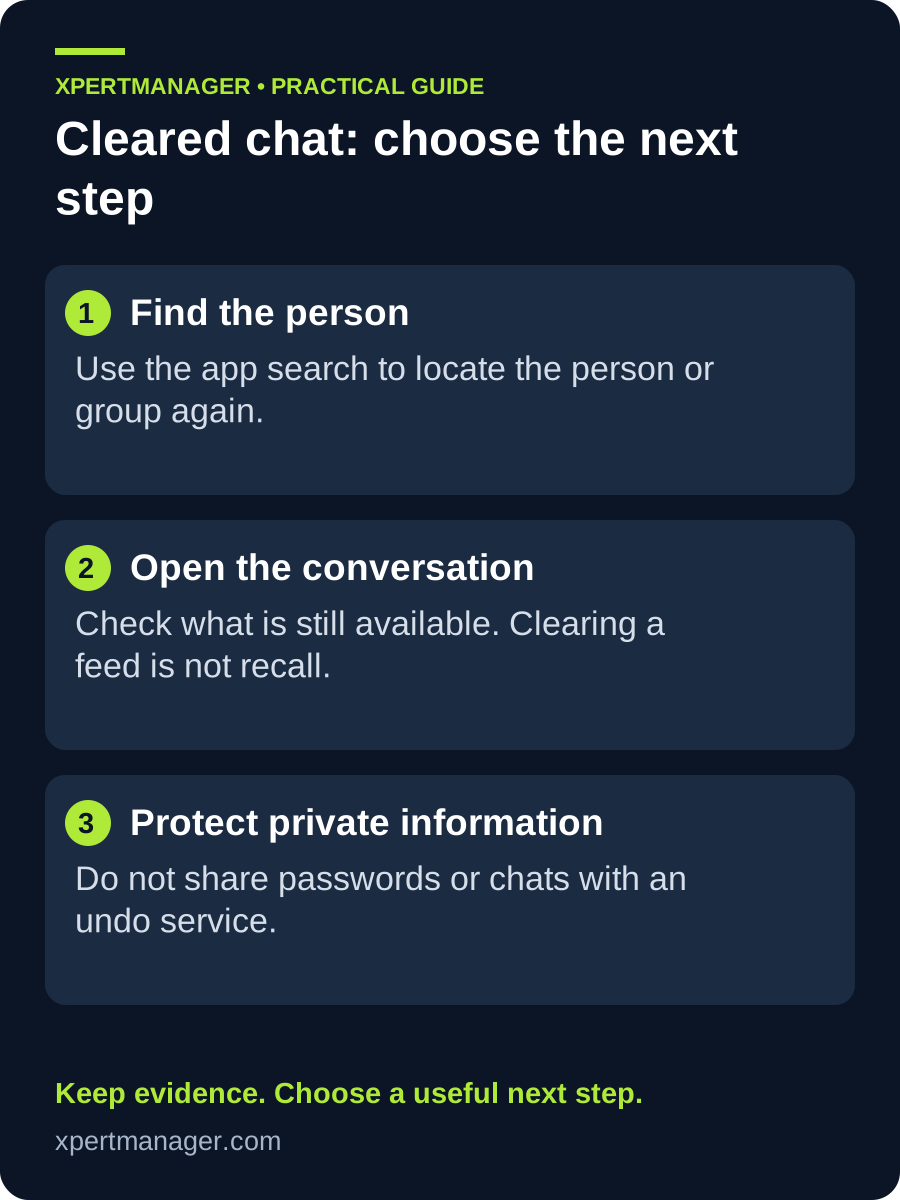
Open Snapchat and use Search to find the person or group you cleared from the Chat screen.
- 02
Open the result to view the conversation again. For a group, Snapchat’s current help says you can press and hold the group, choose Chat Settings, then choose Clear from Chat Feed when you want to remove it from the feed.
- 03
Send a new message only if you want the conversation to become active in your Chat screen again. Check any saved messages in the thread separately.
What ‘Clear from Chat Feed’ actually does
The feature is designed to remove a conversation thread from your own Chat screen so the feed is less cluttered. It is not a promise that every message, saved item, or account record disappears. What remains visible can depend on the type of chat and the way messages were saved.
That distinction matters when searching for an answer. ‘Undo clear chat’, ‘unclear chat’, ‘get someone back on my chat feed’, and ‘delete messages’ are often used as if they mean the same thing, but they are different actions.
How to get a person or group back in your Chat screen
Use the in-app search to locate the person or group, then open it. If you need the conversation to move back into your active Chat list, continuing the conversation is the practical route. There is no need to use a third-party tool or share access to your account.
If the person cannot be found, check the spelling, your friendship status, and whether the group still exists. Those are separate issues from having cleared a chat from the feed.
Clear, delete, remove, and block are different
Clearing changes the chat feed display. Deleting a saved item, leaving a group, removing a friend, and blocking an account each have their own effects. Choose the action that matches the result you want instead of assuming a feed clean-up changes the relationship or all past content.
Good to know
- Clear from Chat Feed is an inbox-cleanup action. It is different from deleting a saved message, deleting an account, blocking someone, or recalling a Snap.
- Screens and labels can change when Snapchat updates its app, so use the official help link below for the current menu wording.
- Do not share your password, verification code, or private chats with anyone who claims to offer an undo service.
Common questions
Questions people ask
Can I undo Clear from Chat Feed on Snapchat?
There is no dedicated ‘unclear’ or undo control. Find the person or group again with Search and open the conversation. Continue the chat if you want it to become active in your feed again.
Does Clear from Chat Feed delete all messages?
No. Clearing the feed is not the same as deleting every message. Review the conversation and Snapchat’s current help for the type of chat or saved content you are dealing with.
Will the other person know that I cleared the chat feed?
The feature is intended to change your own Chat screen. Snapchat can change product behaviour, so check the current in-app help for your situation instead of relying on a third-party claim.