
Google Business Profile guide
How to Set Holiday Hours on Google Business Profile
Set Thanksgiving and Black Friday hours in Google Search and Maps. Follow a checklist for special hours, website updates, booking and branch verification.
Quick answer
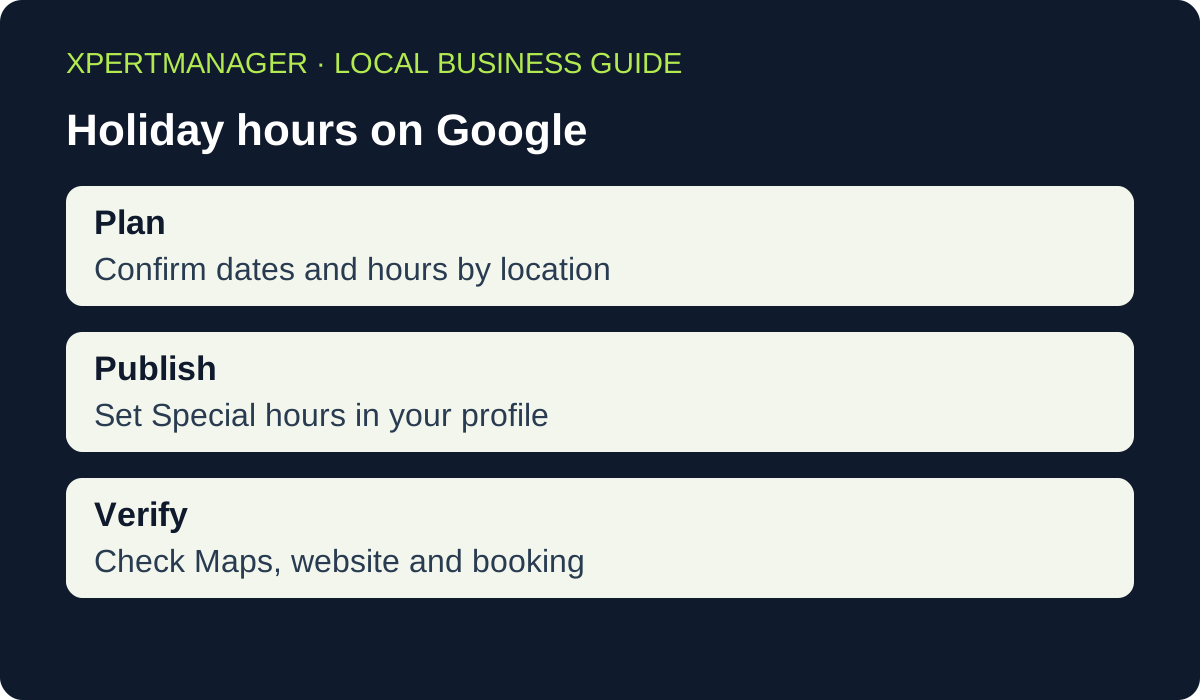
Open the Business Profile for your location and select Edit profile, Hours, then Special hours. Choose each date, enter the hours customers can visit or mark that day closed, and save. Check the public listing, website and booking calendar against the same approved schedule.
A simple way to approach it
- 01
Confirm hours and last booking or pickup times for each location.
- 02
Enter each holiday date under Special hours and save.
- 03
Update the website, booking calendar, voicemail and confirmations.
- 04
Verify what customers see and check that normal hours resume.
Build a schedule the whole team can use
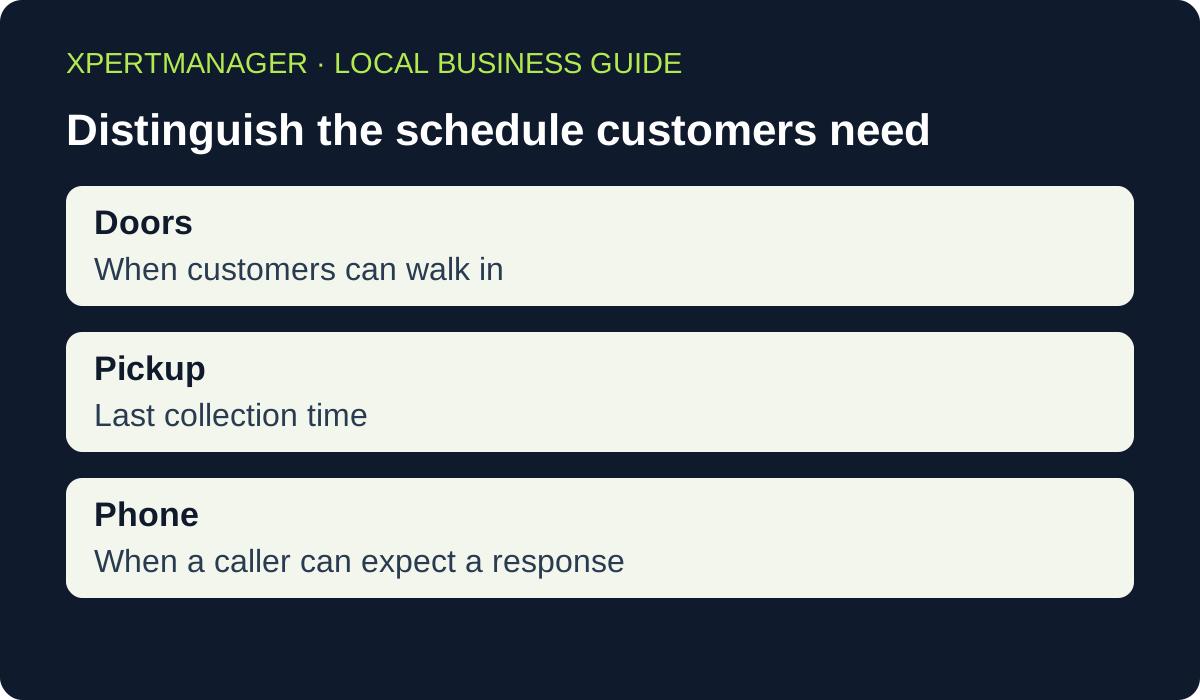
Start with one schedule per location. Include the calendar date, local time zone, customer-facing hours, last booking or pickup time, and the person who approved it. Ask the people who run the desk, kitchen or dispatch line to confirm those details. A team might agree the building stays open until 4 p.m. while the last customer pickup is at 3:30 p.m. A customer needs both pieces of information to plan their trip.
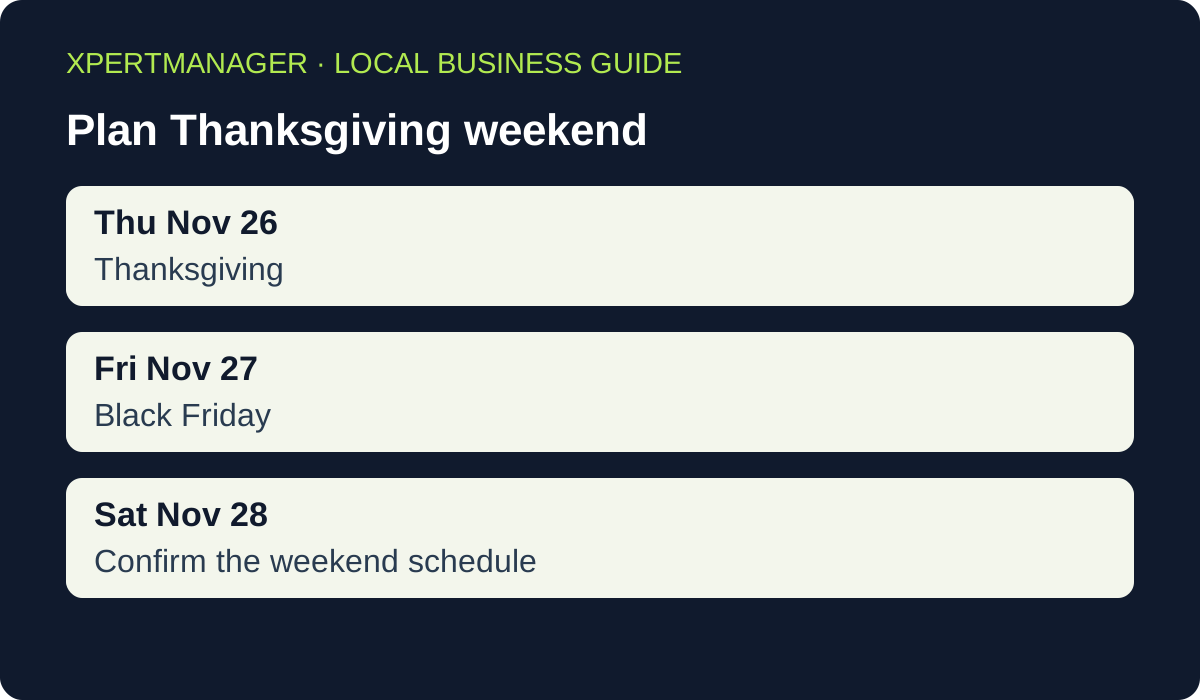
For the 2026 US holiday weekend, review Thursday, November 26 and Friday, November 27 separately. Check Saturday as well if staffing changes again. For example, a neighborhood hardware store might close Thursday, open 8 a.m. to 4 p.m. Friday, and keep its regular hours Saturday. A shop across town might follow a different plan. Make your own schedule the source for the listing, website, voicemail and booking system.
Choose the right hours setting
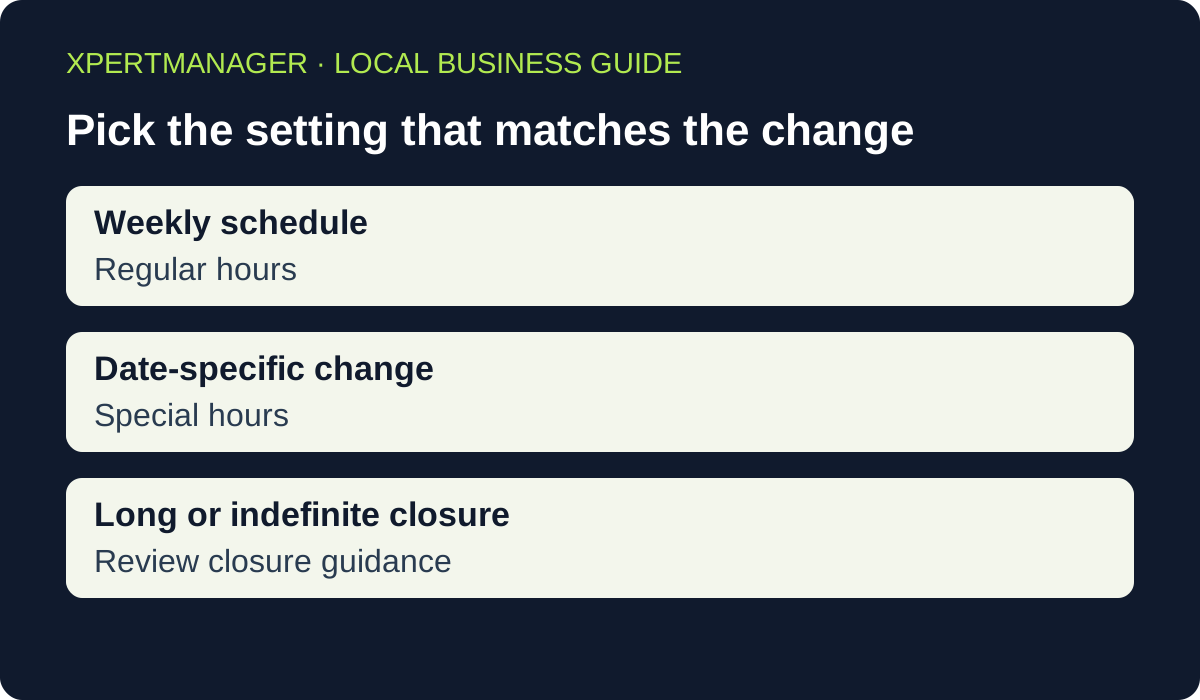
Regular hours describe the usual weekly schedule. Special hours handle date-specific exceptions such as a holiday closure or a shortened day. Google also recommends confirming hours for official holidays even if you plan to open at your usual times. If the holiday you need does not appear among the suggestions, use the option to add the date.
For a short closure, set the applicable dates as closed. Google directs businesses to use Temporarily closed for a closure lasting seven or more consecutive days or for an unknown period. If the business accepts appointments only or operates in a category where regular hours do not fit, consult the profile guidance before changing the listing. Start with the actual way customers get service and review what Google lets that profile display.
Enter each date in Google Business Profile
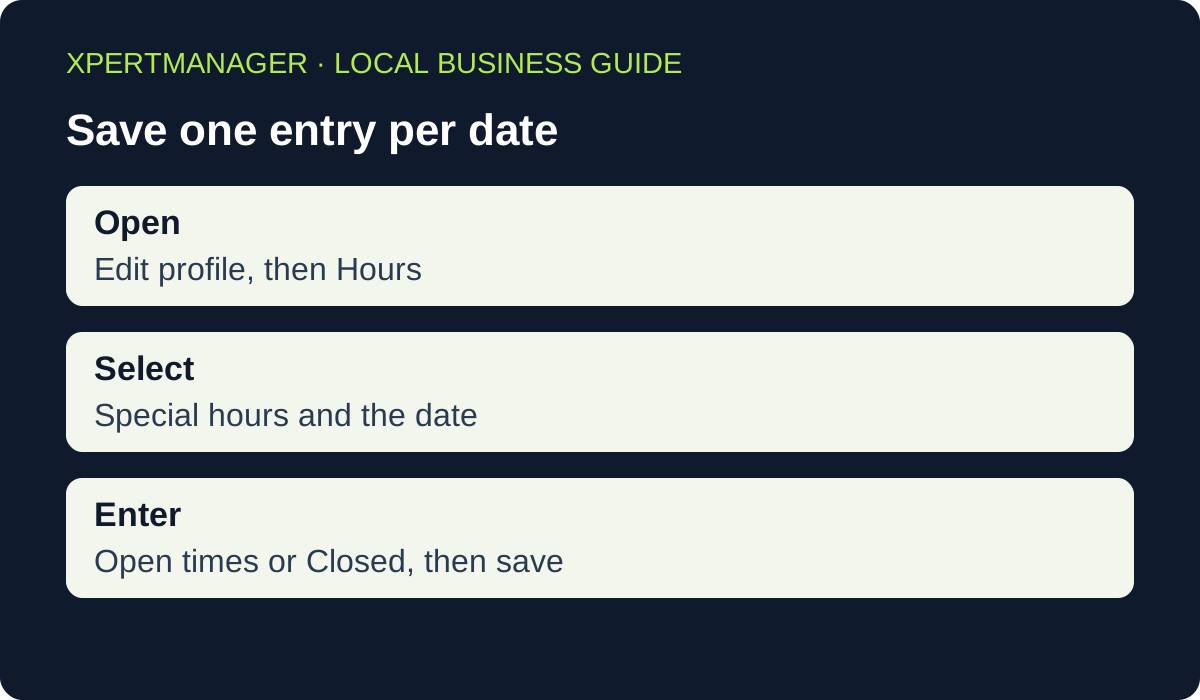
Sign in with the account that manages the location and open its Business Profile. Select Edit profile, open Hours, and find Special hours. Google says the profile needs to be set to open with main hours for special hours to show. Confirm the suggested date or add one, enter the opening and closing times or mark the location closed for that day, and save. Confirm you selected the correct location before entering the next store’s hours.
When the business has a break in service, use separate opening periods if the editor supports them. A shop open 9 a.m. to noon and 2 p.m. to 5 p.m. should represent those as two periods. Review the date and the time markers before saving, especially around noon and midnight. For overnight hours, consult Google’s special-hours instructions and verify what the public listing shows on both calendar days.
Use customer-facing hours and explain exceptions
Imagine a bakery that opens its counter at 8 a.m. on Black Friday and stops preorder pickup at 1 p.m. The counter closes at 3 p.m. The profile can show when the counter serves customers. The website and preorder confirmation should also give the pickup cutoff so someone arriving at 2 p.m. knows which services are still available. If only the kitchen crew is present before 8 a.m., leave that staff time out of the customer schedule.
The same principle applies to an HVAC company. A person answering a phone may be able to take messages while technicians are off duty. Describe the actual dispatch availability on the site and voicemail. A message such as “Our office is closed Thursday. Requests received today will be reviewed Friday after 8 a.m. local time” gives the caller a clear expectation. Use an emergency number or response estimate only when the business can deliver that service.
Update the website, booking calendar and voicemail
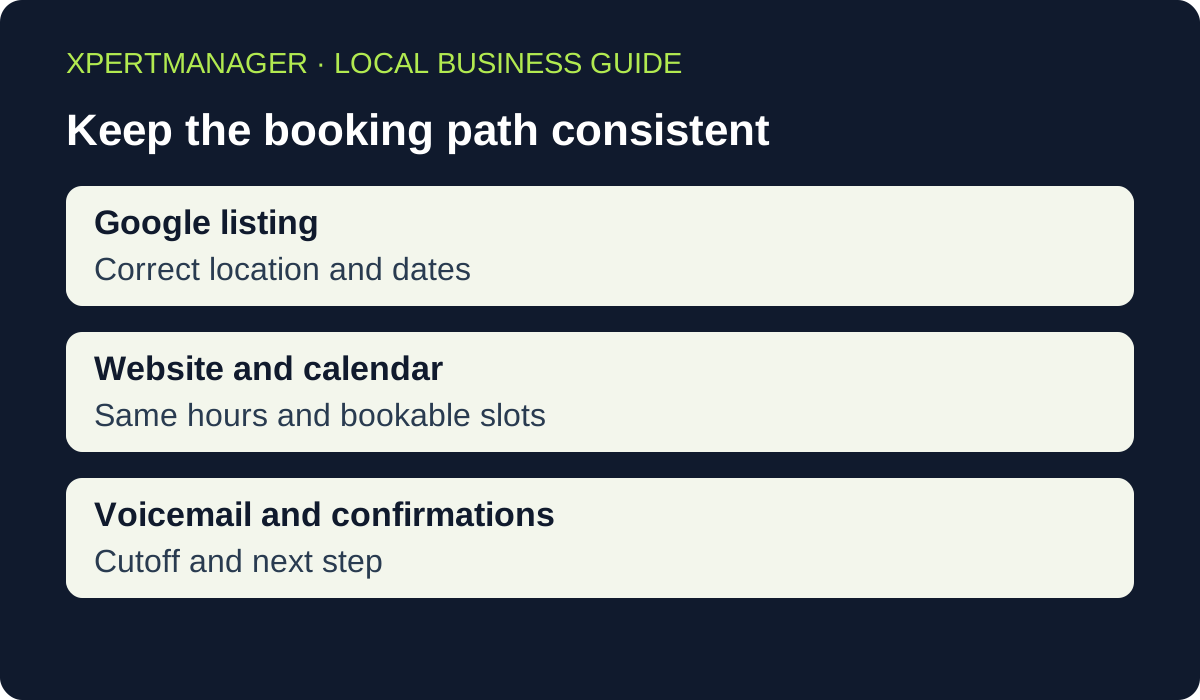
Walk through a customer’s likely path. Someone may see the listing in Maps, open the location page, and try to reserve a slot. Put a dated notice near the relevant location details, block unavailable slots, and update the booking confirmation if it currently quotes regular hours. Check confirmation emails and reminders for any conflicting instructions. Put the location name and local time next to the holiday schedule when multiple branches share one website.
You can adapt this notice: “Thanksgiving, Nov. 26: closed. Black Friday, Nov. 27: open 8 a.m.–4 p.m. Pickup ends at 3:30 p.m. We return to our regular schedule Saturday.” Use the same facts in the phone greeting. Give each channel a named owner and set an end date for temporary banners so a notice cannot accidentally appear weeks after the holiday.
Check the listing the way a customer sees it
A saved edit is the starting point for verification. Search the exact business name and city on your phone, then open the public listing and expand the hours. Confirm the address or branch, the relevant holiday date, and the hours shown. If the dates are still ahead, look for the listed exceptions and repeat the check close to the holiday. Save the check date and a link in the team schedule.
If the change does not appear, first confirm you edited the right branch and date and look for a pending or rejected change in the profile. Compare the entry with your agreed schedule, including any split periods. Use Google’s support route if the state cannot be resolved in the editor. Keep the website, voicemail and booking calendar accurate while the listing catches up. Avoid replacing the regular schedule to force a one-day exception to show.
Test the customer handoff before the weekend
Ask a colleague to start from Maps without giving them the planned schedule. Give them a realistic task, such as finding out whether they can pick up an order at 2 p.m. Friday. Watch where they look first and write down the answer they get. Repeat the task from the website and from the automated phone greeting. If the answers differ, fix the source that created the mismatch and run the test again.
For an appointment business, check a closed day and a shortened day. A closed day should offer no appointments. On a shortened day, a slot should start early enough to finish within the hours your team can honor. Check the confirmation and reminder as well as the calendar. If a customer can submit a request while the team is away, state when somebody will review it. These checks take a few minutes and help you catch mistakes that a glance at the listing alone can miss.
Handle a last-minute change
If a storm, staff absence or delayed delivery changes the plan, update the shared schedule first and record who approved the change. Then correct the booking calendar and reach anyone who already has a reservation. Publish the revised hours on the channels customers use to decide whether to travel, including the profile, the location page and the phone greeting. State what customers can do now, such as choosing the next pickup window or calling during the revised hours.
Where several people manage a location, have one person check that each update agrees with the latest schedule. A change posted to social media can be missed by someone navigating from Maps. Use a dated notice on the location page so the answer is clear even when a reader arrives from an older link. When the business reopens, check the public listing again and clear any temporary notices that no longer apply.
Give every branch a sign-off checklist
For a business with several branches, assign each location a row in the schedule. Suggested columns are branch, date, approved hours, Google edit status, website status, booking check, public check time and owner. A manager can then see which branch needs attention without reopening every profile. Have someone besides the person who entered the change verify the locations with unusual hours, such as a branch in a different time zone or a store that opens later than the rest.
After the weekend, check that the booking rules and banners have expired and that normal hours are visible for the next business day. Ask the team whether customers arrived at the wrong time or tried to book during a closure. Use those incidents to improve the next holiday checklist. The free Local Growth Audit can help review available public business details and website readiness. Use the profile manager and a direct public check for date-specific hours and edit status.
Good to know
- Use the time zone of the location customers will visit.
- Check Thanksgiving and Black Friday as separate dates.
- Assign an owner to verify the public listing and close out temporary notices.
Common questions
Questions people ask
Should I change my regular hours for Thanksgiving?
Use Special hours for a Thanksgiving exception. Keep regular hours aligned with the normal weekly schedule. Enter Thanksgiving Day and Black Friday separately because either day can have its own closure or opening times.
What if we keep our usual holiday hours?
Google recommends confirming hours on official holidays even when you keep your regular schedule. Confirm the date for each location and check the public listing before customers travel.
Why are my holiday hours missing in Google Maps?
Check the location, date, main-hours setting and the status of the edit. Review the public listing separately after saving. If an edit remains unresolved, follow the guidance shown in the Business Profile or contact its support channel.
Can one holiday schedule cover all my locations?
Use one internal schedule with a row for each location and date. Apply the correct hours to each profile. Ask each branch to verify the public listing and test any location-specific booking rules before the holiday.